How do I add placeholders when composing a new email?
1. Select Placeholders in the drop-down.

2. You can select any or all of the options (i.e. Full Name, Work Phone, Mobile Phone, Address, etc.). Once you have finished composing your email, select Send.
3. If you have not added some of the information selected to be included in the email, the following notification will appear:
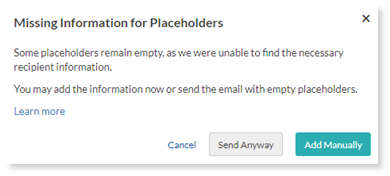
4. We recommend selecting Add Manually to complete the required information.
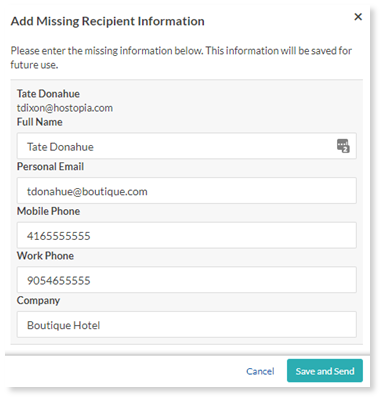
5. Select Save and Send once you are finished.
Related Articles
How can I change the from email address in my email marketing?
You can add multiple sender email addresses (or "From" email addresses). To view and add a sender email address: Log in to your dashboard and select the My Email Campaigns tile. Or if you are already logged in to your dashboard, select the Email ...
How do I use automation and workflows to trigger my email campaigns?
You can create a workflow that allows you to create triggers and rules to send your emails. Email automation allows you to set up a series of automated emails (called a workflow) to be sent to your contacts when certain criteria is met. A workflow ...
How do I add a new product to my online store?
To add a new product, select the E-Commerce tile. Select the Catalog tab. Select “+ Add New Product”. Enter the name, description, and other product details. Select “Save”.
How do I write my email survey?
Your survey messaging should speak to your customer. A change to your message can mean the difference between a new 5-star review and your request going straight in the trash. To learn more on how to use Testimonial Collector to send email surveys to ...
How do I customize my email survey in Testimonial Collector?
To customize your email survey, select the Get 5 Star Reviews tile. Select the Settings tab and then select Email. Here you can edit the subject of your email and your email text. Drag and drop these icons to add a new item (button, divider, image, ...