How do I manage destination zones in my online store?
The areas that you ship to are called destination or shipping zones. Each shipping method in your store can be limited to a certain destination zone so that the rate only applies to customers whose shipping addresses are within this area.
Destination zones in your store can be limited to world regions, countries, states, and, when restricted by post codes or zip codes, to cities, towns, and streets.
Creating Destination Zones
To create a destination zone, select the E-Commerce tile.
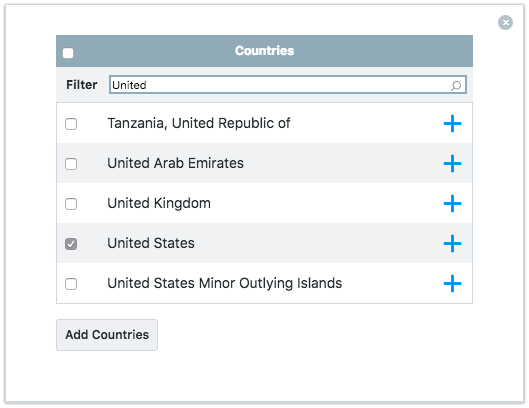
Select Settings > Destinations Zones. Select Add New Zone. You have the option to update the zone name and add by country or state.
Add By Country Add By State
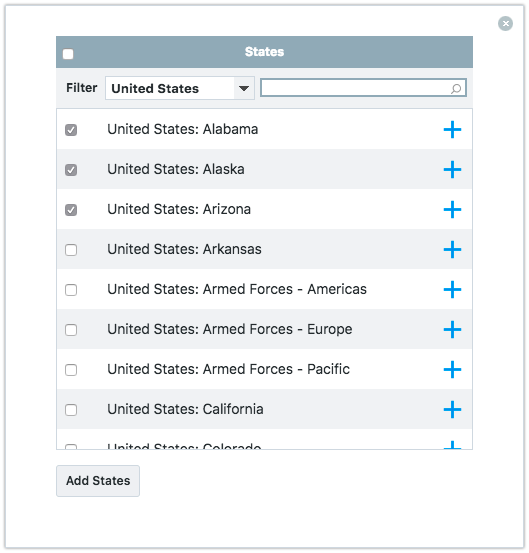
Fill out the Zip/Postal codes field to restrict the zone to certain locations within the state, e.g. cities, towns, and streets.
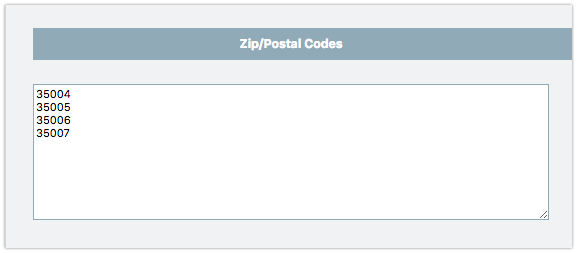
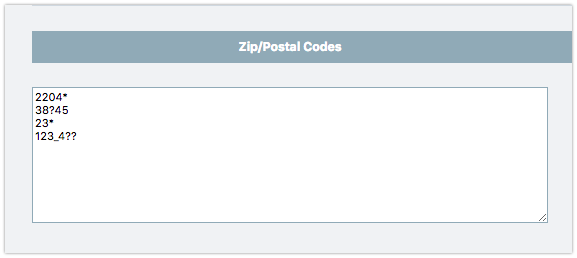
You can use wildcard symbols to build the list of zip/postal codes:
- “?” matches any single character.
- “*” matches any number of characters, including zero. Spaces will be ignored.
- “_” matches any number of spaces (at least one).
Removing an Area From a Destination Zone
To remove an area from an already configured destination zone, select the specific destination zone name. Select the Trash can icon to remove an area from the shipping location.
Assigning Destination Zones for Shipping Methods
When you create a new shipping method, you can select the destination zone to which it will apply. Select the Shipping and Pick-Up tab. Select action and edit.
Scroll down to the shipping region section and select the destination zone you would like to set.