How do I view my agenda in Webmail?
The Agenda display provides details for all events scheduled for that day. Changing the day inside the Secondary Menu calendar will update your agenda. This allows you to see what events are coming up over the next few days.
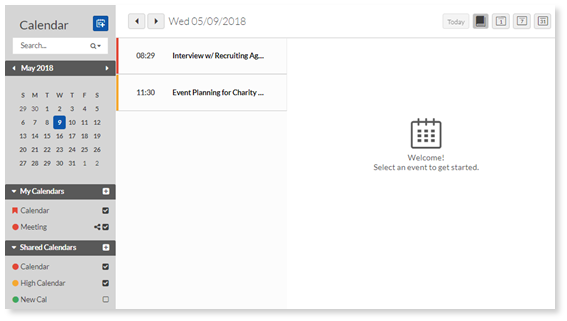
Options (top right corner)
- Agenda (shown above)
- Daily
- Weekly
- Monthly
Related Articles
How do I edit events in Webmail?
Webmail allows you to edit any event from the day, week, month or Agenda view. Each of these methods will display the Edit event dialog, which provides the same properties as the new event dialog; however, the selected event’s information will be ...
How do I create events in Webmail?
You can open the New Event screen through any of the calendar views or by clicking the New Event icon on the Secondary Menu. The new event dialog includes the following tabs: Main – Allows you to specify the event title, time and specify a recurring ...
How do I select calendar preferences in Webmail?
The Calendar section allows you to define default behavior when inside the Calendar. For example, you can specify the default view and event duration, specify the hours to display inside the Calendar view, and generate links to be used while sharing ...
How do I switch to timeline view in Social 365?
To switch from calendar to timeline view, select the Timeline icon. To navigate your timeline, select a month from the drop-down menu to view that month's posts Reference the date headers in the posting timeline to see the posts scheduled for each ...
How do I view hidden pages on my website?
Video Walkthrough: To view your hidden pages, select the Manage Your Site tile. Select "Menu". Select "Manage Pages". To only see the pages you've marked visible, toggle the View Hidden Pages Button to "No". To view all pages, including hidden ones, ...