How do I manage my email attachments in Webmail?
The Attachments folder displays a list of all attachments within the specified folder. By default, it is sorted by date received but there are other filtering options.
The following sort options are available:
• File Name
• Subject
• File Size
• Date Received
• Sender
The following sort options are available:
• File Name
• Subject
• File Size
• Date Received
• Sender
From the Attachments page, you can also download one or multiple attachments to your local drive.
To view attachments:
1. From the Secondary Menu, select Attachments.
2. To specify the folder location, select the option from the View drop-down.
2. To specify the folder location, select the option from the View drop-down.

3. To sort the attachments, select the option from the Sort by drop-down.

To download attachments:
1. From the Secondary Menu, select Attachments.
2. Specify the folder location from the View drop-down.
3. Select the attachment(s) and click Download.
2. Specify the folder location from the View drop-down.
3. Select the attachment(s) and click Download.

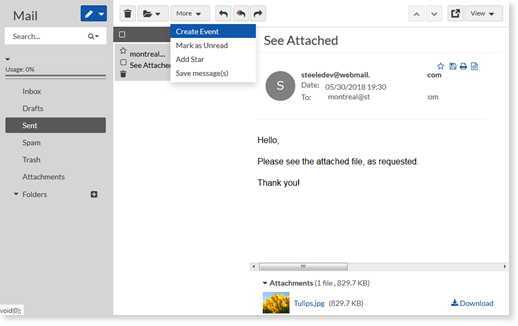
4. You also have the option to select the Mail icon. This will direct you to the inbox where you can perform the following actions with the message:
• Forward the attachment
• Move the message to another folder
• Reply to the message with the original attachment
• Create an event with the attachment, save, mark as unread, or add a star
• Forward the attachment
• Move the message to another folder
• Reply to the message with the original attachment
• Create an event with the attachment, save, mark as unread, or add a star